Tutorial zur Workspace-Transformation des Geräts
Dieses Tutorial baut auf dem Grundlagen-Tutorial zu Force-Feedback auf und zeigt, wie Sie Position, Rotation und Skalierung des Geräts Inverse3 mithilfe seiner Raumtransformationseigenschaften und -methoden anpassen.
Einführung
Nachdem Sie die Szene für das Grundlagen-Force-Feedback eingerichtet haben, werden Sie möglicherweise feststellen, dass Anpassungen am Haptic Origin oder am Haptic Controller – etwa Verschieben, Skalieren oder Drehen – das haptische Feedback nicht wie erwartet beeinflussen. Das Feedback entspricht weiterhin einer unsichtbaren Kugel vor dem Gerät, die von diesen Transformationen unberührt bleibt.
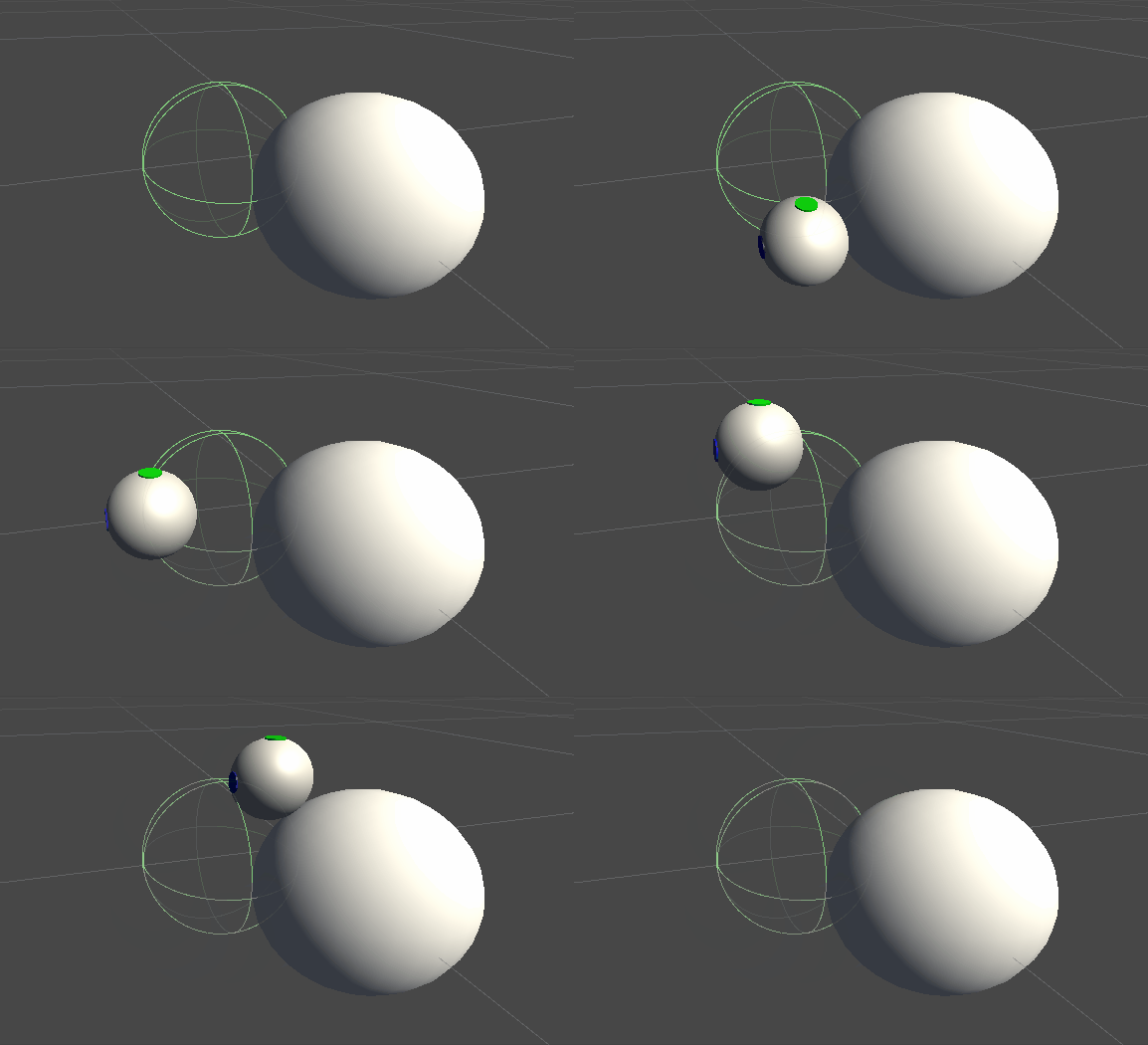
Diese Abweichung entsteht, weil die Kraftberechnungen die realen, nicht transformierten Koordinaten des Cursors verwenden. Um dies zu beheben, nutzen wir die threadsicheren, zwischengespeicherten Transformationsmatrizen, die von der Komponente Inverse3 Controller bereitgestellt werden. Damit können wir Weltkoordinaten-Transformationen auf die Berechnungen des haptischen Feedbacks anwenden.
Szenenaufbau
Beginnen Sie mit der Szene aus dem Grundlagen-Tutorial zu Force-Feedback und stellen Sie sicher, dass die Händigkeit des Inverse3-Controllers Ihrem Gerät entspricht. Drehen Sie den Haptic Controller so, dass das Haply-Logo zur Kamera zeigt, und passen Sie die Skalierung des Haptic Origin bei Bedarf an, um die Cursorreichweite zu vergrößern oder seine Position anzupassen.
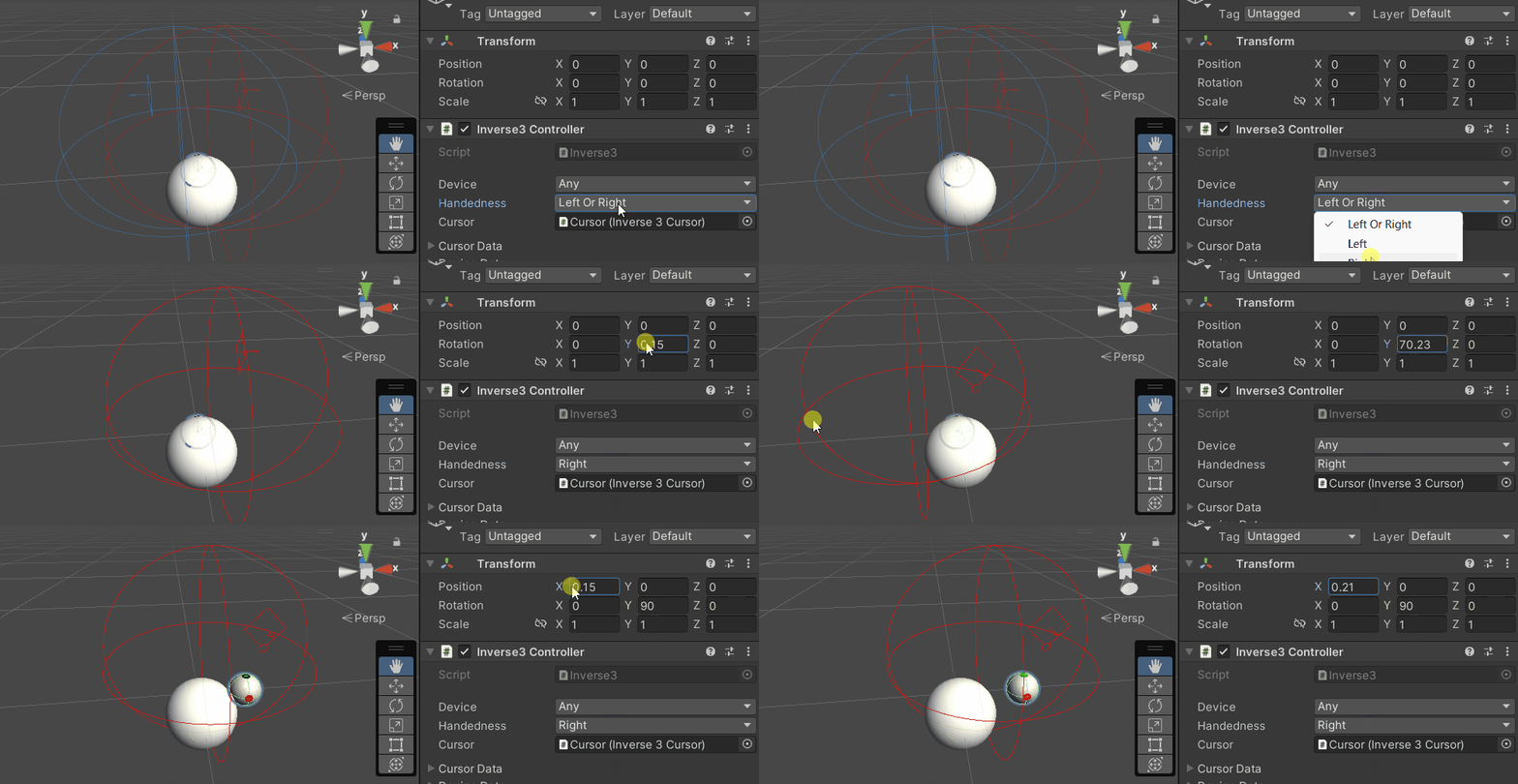
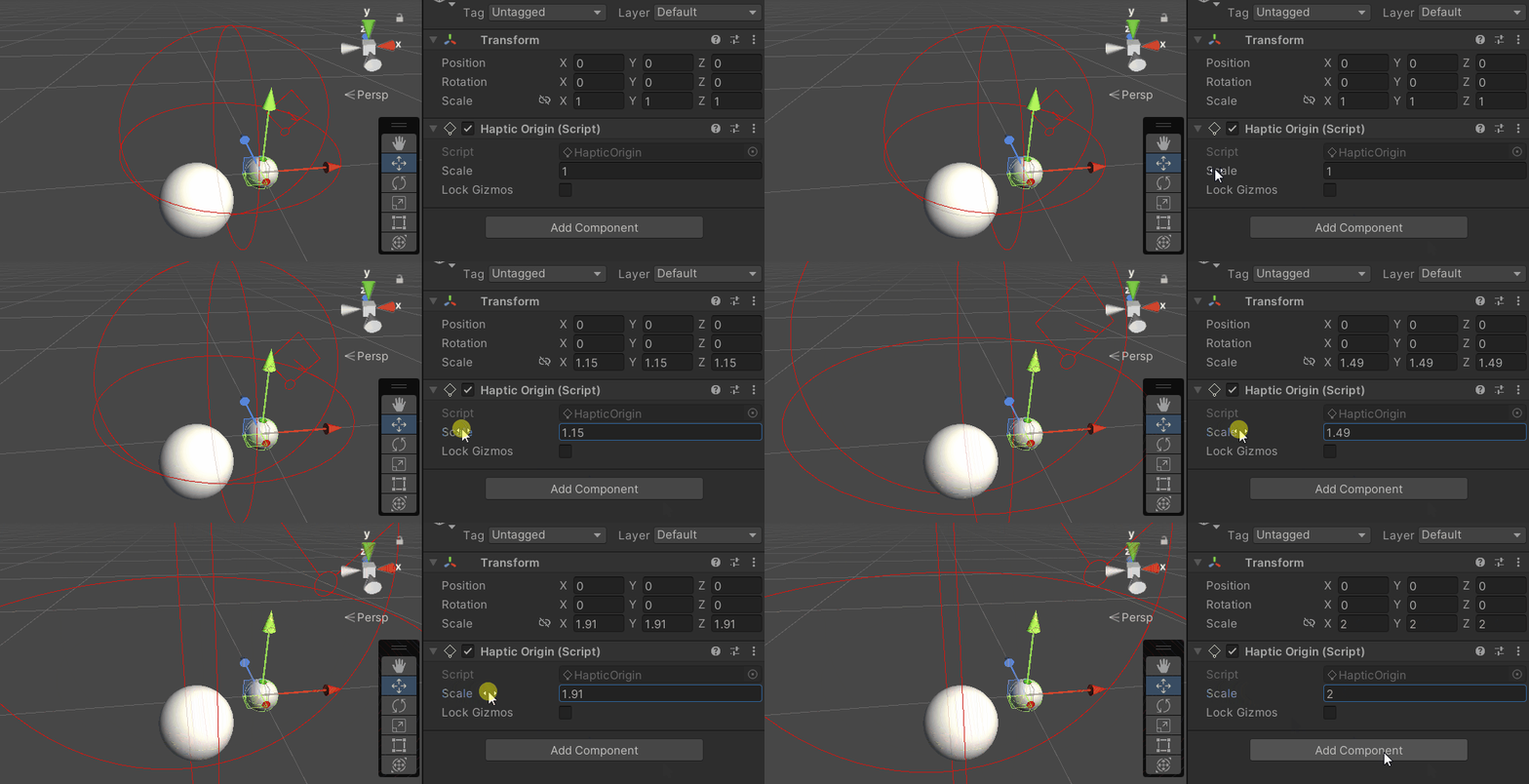
Änderungen am Force-Feedback-Skript
Kopieren Sie das Skript SphereForceFeedback.cs aus dem Grundlagen-Tutorial zu Force-Feedback und nehmen Sie im Callback OnDeviceStateChanged folgende Anpassungen vor:
- Ersetzen Sie
device.CursorLocalPositiondurchdevice.CursorPosition. - Ersetzen Sie
device.CursorLocalVelocitydurchdevice.CursorVelocity. - Ersetzen Sie
device.CursorSetLocalForce(force)durchdevice.CursorSetForce(force).
private void OnDeviceStateChanged(object sender, Inverse3EventArgs args)
{
    var inverse3 = args.DeviceController;
    var force = ForceCalculation(inverse3.CursorPosition, inverse3.CursorVelocity,
        _cursorRadius, _ballPosition, _ballRadius);

    inverse3.SetCursorForce(force);
}
Gameplay-Erlebnis
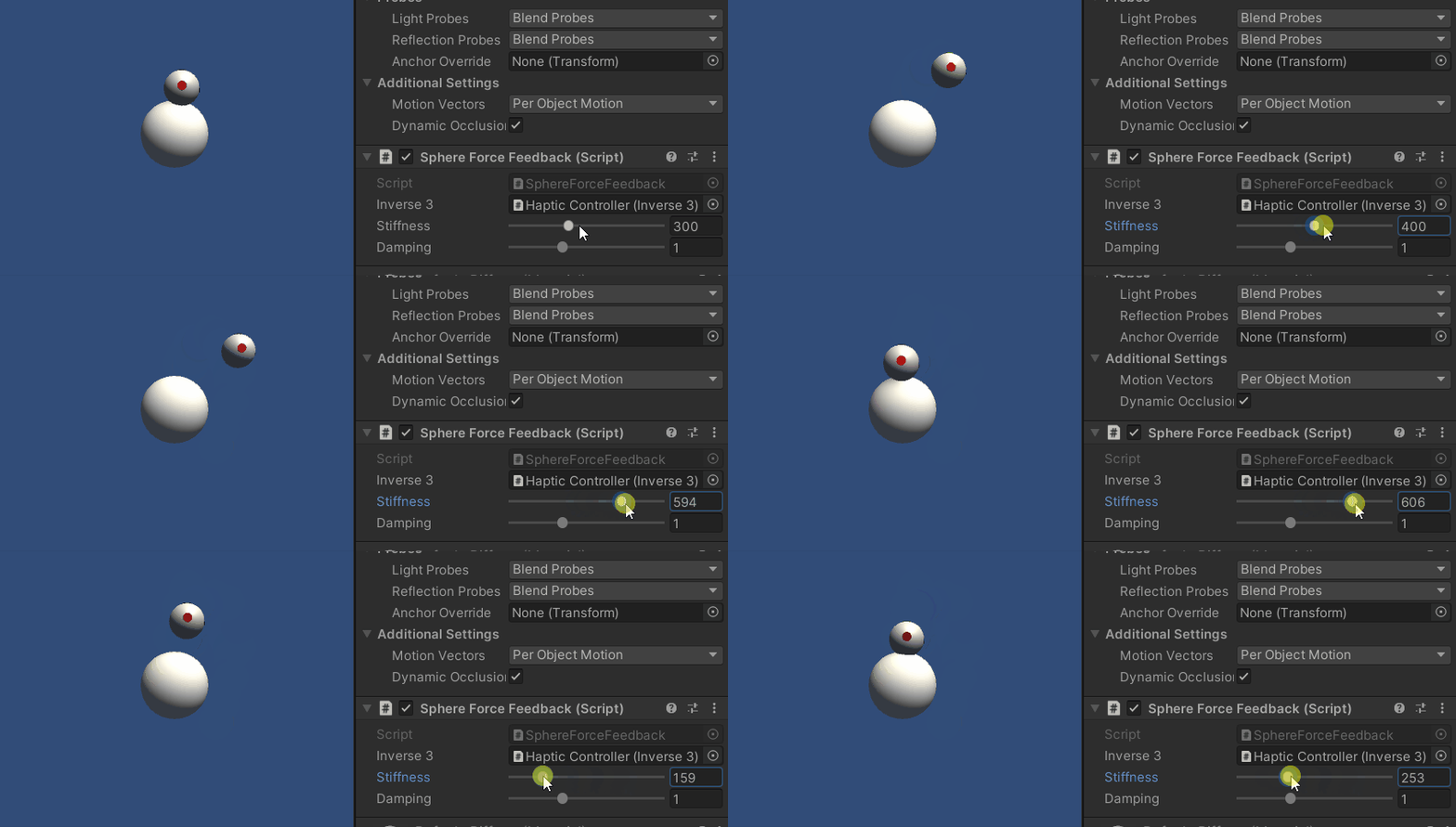
Halten Sie den Inverse3-Cursor gedrückt und starten Sie den Play Mode. Versuchen Sie, die Kugel wie im vorherigen Beispiel zu berühren. Sie sollten nun ein präzises haptisches Feedback erleben, das die auf Haptic Origin und Haptic Controller angewendeten Transformationen widerspiegelt.
Quelldateien
Die vollständige Szene und die zugehörigen Dateien für dieses Beispiel können aus dem Beispiel Tutorials im Package Manager von Unity importiert werden.
Die Beispielszene enthält zusätzliche Skripte für Laufzeitanpassungen des Haptic Controllers und des Haptic Origin.
SphereForceFeedback.cs
/*
 * Copyright 2024 Haply Robotics Inc. All rights reserved.
 */

using Haply.Inverse.DeviceControllers;
using Haply.Inverse.DeviceData;
using UnityEngine;

namespace Haply.Samples.Tutorials._3_DeviceSpaceTransform
{
    public class SphereForceFeedback : MonoBehaviour
    {
        // must assign in inspector
        public Inverse3Controller inverse3;

        [Range(0, 800)]
        // Stiffness of the force feedback.
        public float stiffness = 300f;

        [Range(0, 3)]
        public float damping = 1f;

        private Vector3 _ballPosition;
        private float _ballRadius;
        private float _cursorRadius;

        /// <summary>
        /// Stores the cursor and sphere transform data for access by the haptic thread.
        /// </summary>
        private void SaveSceneData()
        {
            var t = transform;
            _ballPosition = t.position;
            _ballRadius = t.lossyScale.x / 2f;

            _cursorRadius = inverse3.Cursor.Radius;
        }

        /// <summary>
        /// Saves the initial scene data cache.
        /// </summary>
        private void Awake()
        {
            inverse3 ??= FindFirstObjectByType<Inverse3Controller>();
            inverse3.Ready.AddListener((device, args) => SaveSceneData());
        }

        /// <summary>
        /// Subscribes to the DeviceStateChanged event.
        /// </summary>
        private void OnEnable()
        {
            inverse3.DeviceStateChanged += OnDeviceStateChanged;
        }

        /// <summary>
        /// Unsubscribes from the DeviceStateChanged event.
        /// </summary>
        private void OnDisable()
        {
            inverse3.DeviceStateChanged -= OnDeviceStateChanged;
            inverse3.Release();
        }

        /// <summary>
        /// Calculates the force based on the cursor's position and another sphere position.
        /// </summary>
        /// <param name="cursorPosition">The position of the cursor.</param>
        /// <param name="cursorVelocity">The velocity of the cursor.</param>
        /// <param name="cursorRadius">The radius of the cursor.</param>
        /// <param name="otherPosition">The position of the other sphere (e.g., ball).</param>
        /// <param name="otherRadius">The radius of the other sphere.</param>
        /// <returns>The calculated force vector.</returns>
        private Vector3 ForceCalculation(Vector3 cursorPosition, Vector3 cursorVelocity, float cursorRadius,
            Vector3 otherPosition, float otherRadius)
        {
            var force = Vector3.zero;

            var distanceVector = cursorPosition - otherPosition;
            var distance = distanceVector.magnitude;
            var penetration = otherRadius + cursorRadius - distance;

            if (penetration > 0)
            {
                // Normalize the distance vector to get the direction of the force
                var normal = distanceVector.normalized;

                // Calculate the force based on penetration
                force = normal * penetration * stiffness;

                // Apply damping based on the cursor velocity
                force -= cursorVelocity * damping;
            }

            return force;
        }

        /// <summary>
        /// Event handler that calculates and send the force to the device when the cursor's position changes.
        /// </summary>
        /// <param name="sender">The Inverse3 data object.</param>
        /// <param name="args">The event arguments containing the device data.</param>
        private void OnDeviceStateChanged(object sender, Inverse3EventArgs args)
        {
            var inverse3 = args.DeviceController;
            // Calculate the ball force. Using 'device.Position' instead of 'device.LocalPosition'
            // ensures the force calculation considers the device's offset and rotation in world space.
            var force = ForceCalculation(inverse3.CursorPosition, inverse3.CursorVelocity,
                _cursorRadius, _ballPosition, _ballRadius);

            // Apply the calculated force to the cursor. Using 'device.CursorSetForce' instead of
            // 'device.CursorSetLocalForce' ensures that the force vector is correctly converted
            // from world space to the device's local space.
            inverse3.SetCursorForce(force);
        }
    }
}