App Settings
The Settings section allows you to configure the HARP user interface, activate or revoke licenses, and manage plugins.
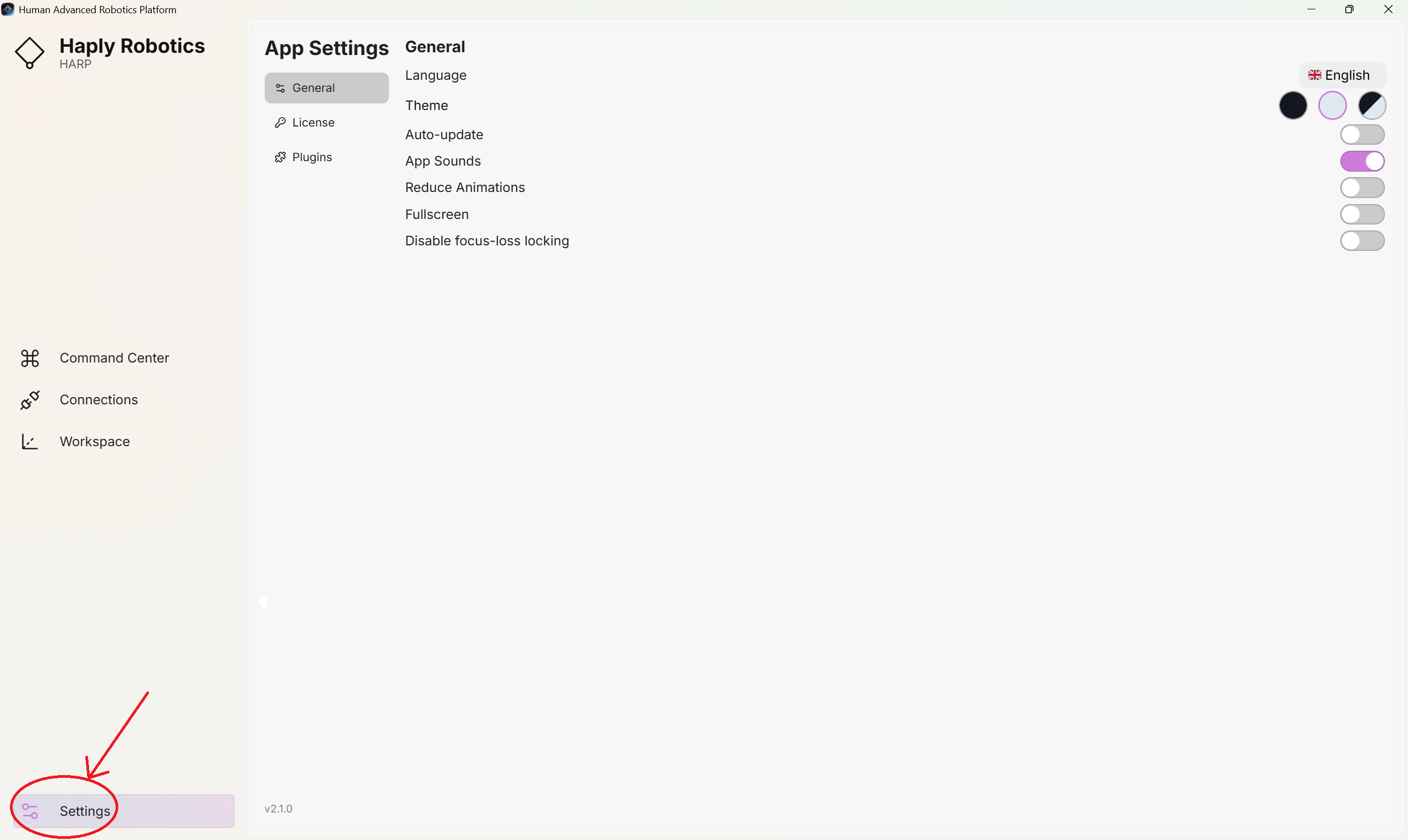
To access this section, locate the Settings icon in the left-side panel and click it to open the Settings page.
General
In this section, you can configure general application preferences of HARP user interface
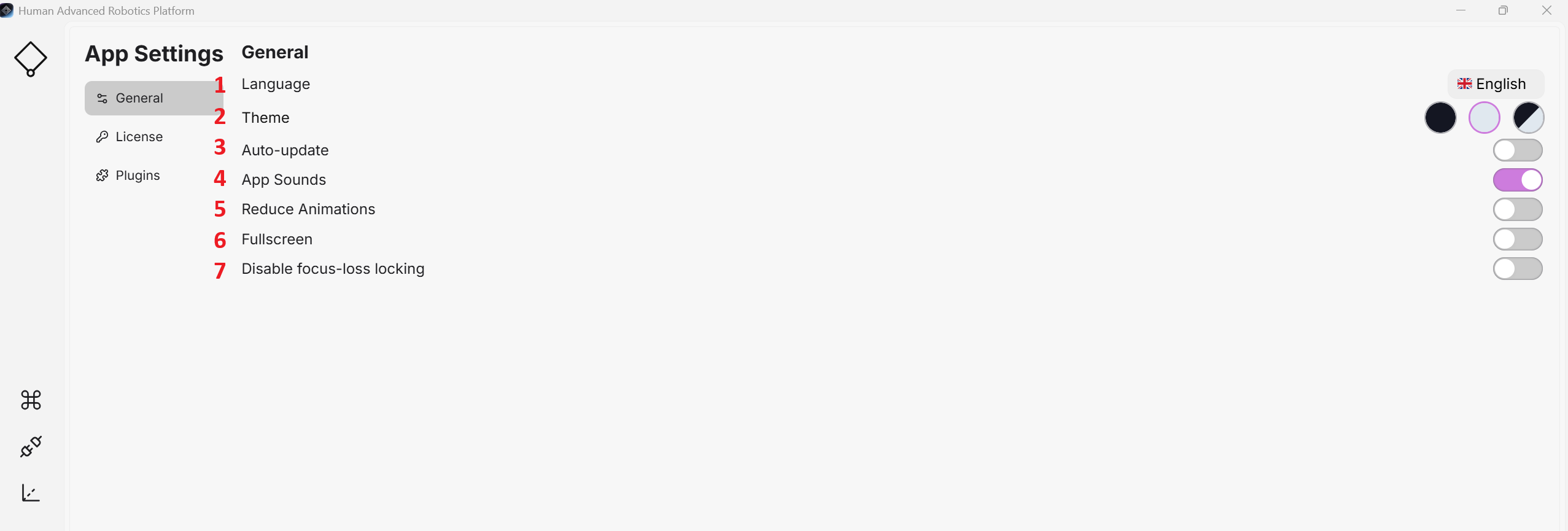
| Num. | Title | Description | Options |
|---|---|---|---|
| 1 | Language | Choose the application UI language. HARP supports English, French, Chinese, Japanese, Korean, German, Italian languages | Dropdown menu |
| 2 | Theme | Select appearance | Light, Dark, Auto |
| 3 | Auto-update | If enabled, HARP checks for updates when the application launches (currently not a built in feature) | Toggle |
| 4 | App sounds | Enable or disable interface sound effects | Toggle |
| 5 | Reduce Animations | Prevents the left toolbar from extending on hover | Toggle |
| 6 | Fullscreen | Provides a fullscreen UI for Proper HMI usage | Toggle |
| 7 | Disable focus-loss locking | Enable or disable the focus-loss safety lock, which stops active control when the HARP window loses operating-system focus | Toggle |
License
License Activation
When you first start HARP, you will notice that only limited functionality is available on each page. To activate your license follow the below steps:
Unless otherwise specified as part of your license agreement for security-sensitive applications, HARP requires an active internet connection when the application is launched.
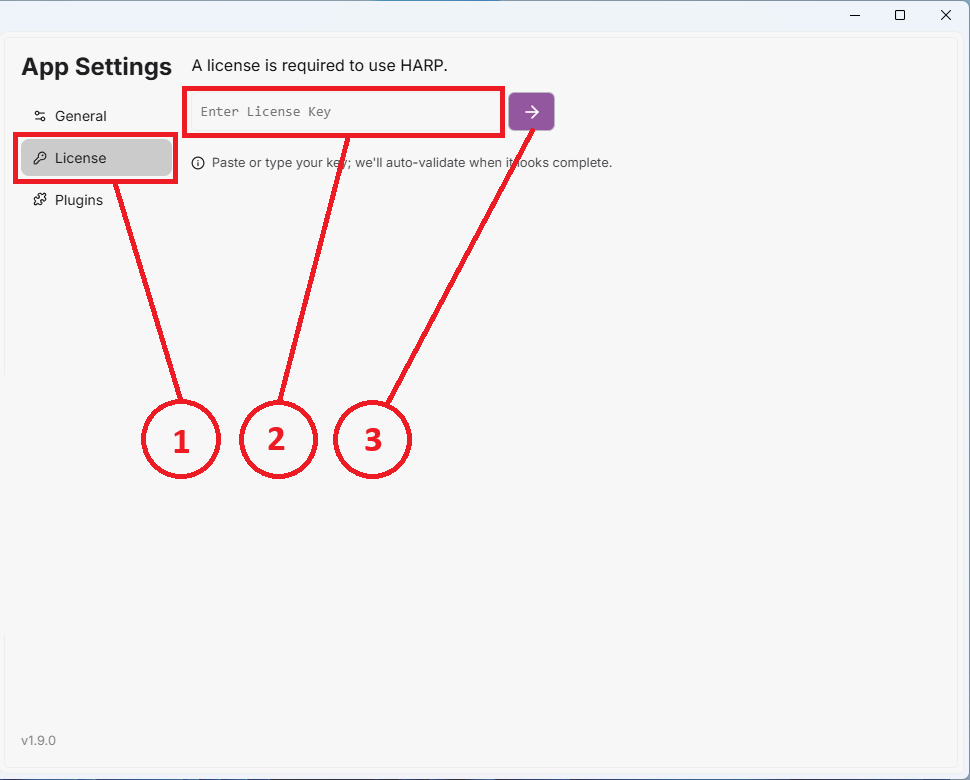
- Click the License tab.
- In the upper-right area of the page, enter the provided license key in the designated text field.
- Click the Activate arrow button to complete the license activation process.
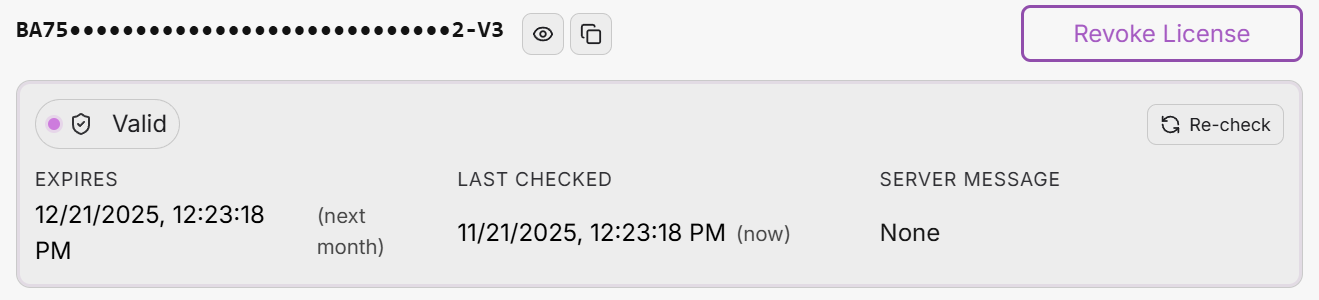
Once the license has been successfully activated, a Revoke License button will appear.
License Release
To release a license for use on another machine, click the Revoke License button.
Plugins
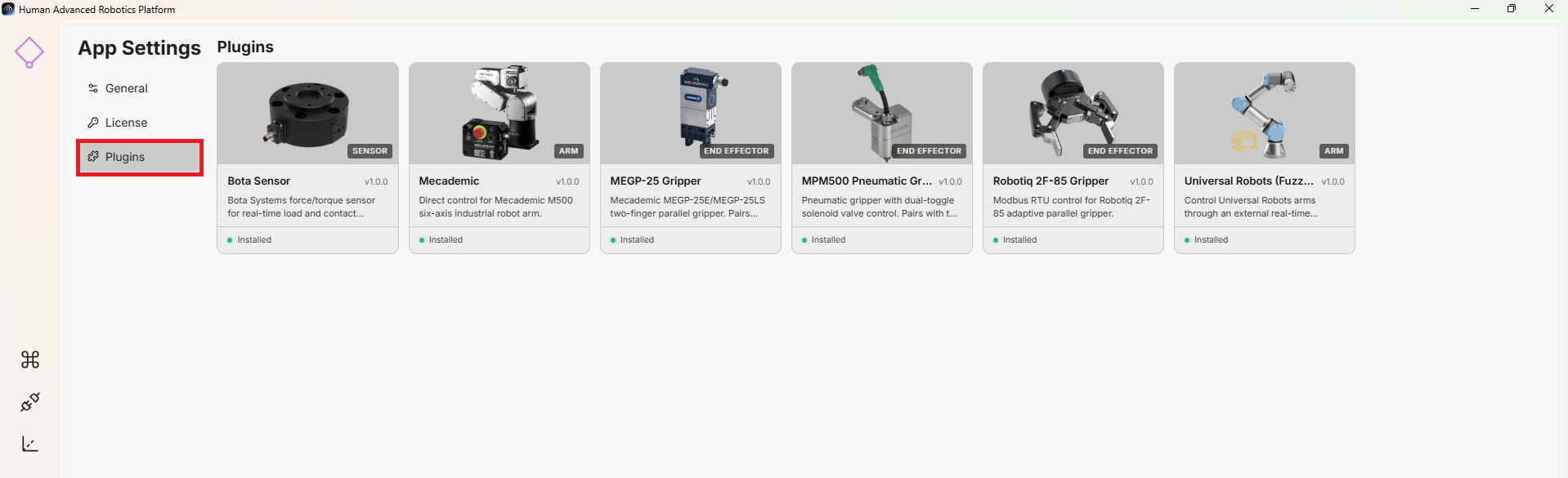
When you open the Plugins tab, you can view all installed plugins available in HARP. If an update is available for a plugin, it can be installed directly from this tab.
By default, HARP includes the supported plugins required for compatible hardware, and installed plugins are provided in their updated versions.