Exclusion Zones
An Exclusion Zone in HARP defines a virtual keep-out region within the robot's 3D workspace. During teleoperation, the robot's TCP is prevented from entering these configured regions.
Exclusion zones can be used to represent physical objects or restricted areas within the robot cell, such as:
- Fixtures
- Monitors
- Nearby machines
- Work surfaces
- Operator or personnel areas
Exclusion zones are created and configured from the Workspace page, where you can position each zone and adjust its size to match the intended physical region.
Unlike a workspace limit, which keeps the robot TCP inside a defined operating volume, an exclusion zone prevents the TCP from entering a specific region within that workspace.
During teleoperation, as the robot approaches an exclusion zone, HARP constrains its motion to prevent entry into the zone. If the operator continues moving toward the boundary, the robot can move along the surface of the exclusion zone while haptic feedback is applied through the Inverse3, allowing the operator to feel the virtual obstacle.
Exclusion-zone checking is based on the robot's TCP, not the complete robot arm. For this reason, consider adding an appropriate margin around physical objects when defining exclusion zones.
Exclusion zones must accurately represent the physical workspace. Because their position is defined relative to the robot and workspace reference frame, incorrect robot pose, zone placement, or zone dimensions may result in the virtual scene not matching the physical environment.
Always validate exclusion zones at reduced speed before normal operation.
Setting Exclusion Zones
Exclusion zones are virtual objects that can be added to the workspace to help prevent the robot's TCP from entering areas occupied by physical objects.
HARP currently supports two exclusion-zone shapes:
- Cube
- Sphere
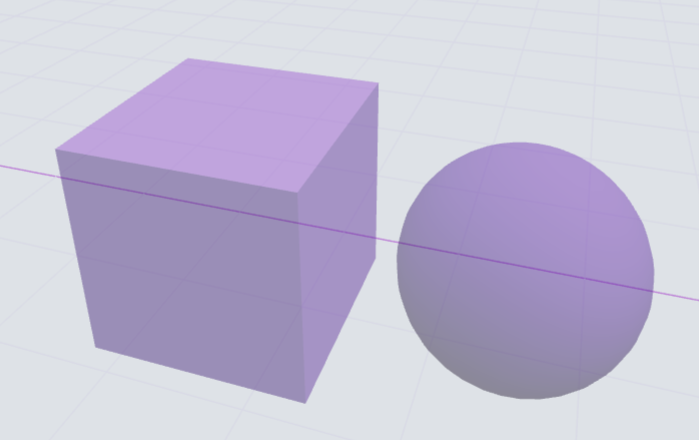
To add an exclusion zone:
- In the bottom-left corner of the Workspace page, click either the Cube or Sphere icon.
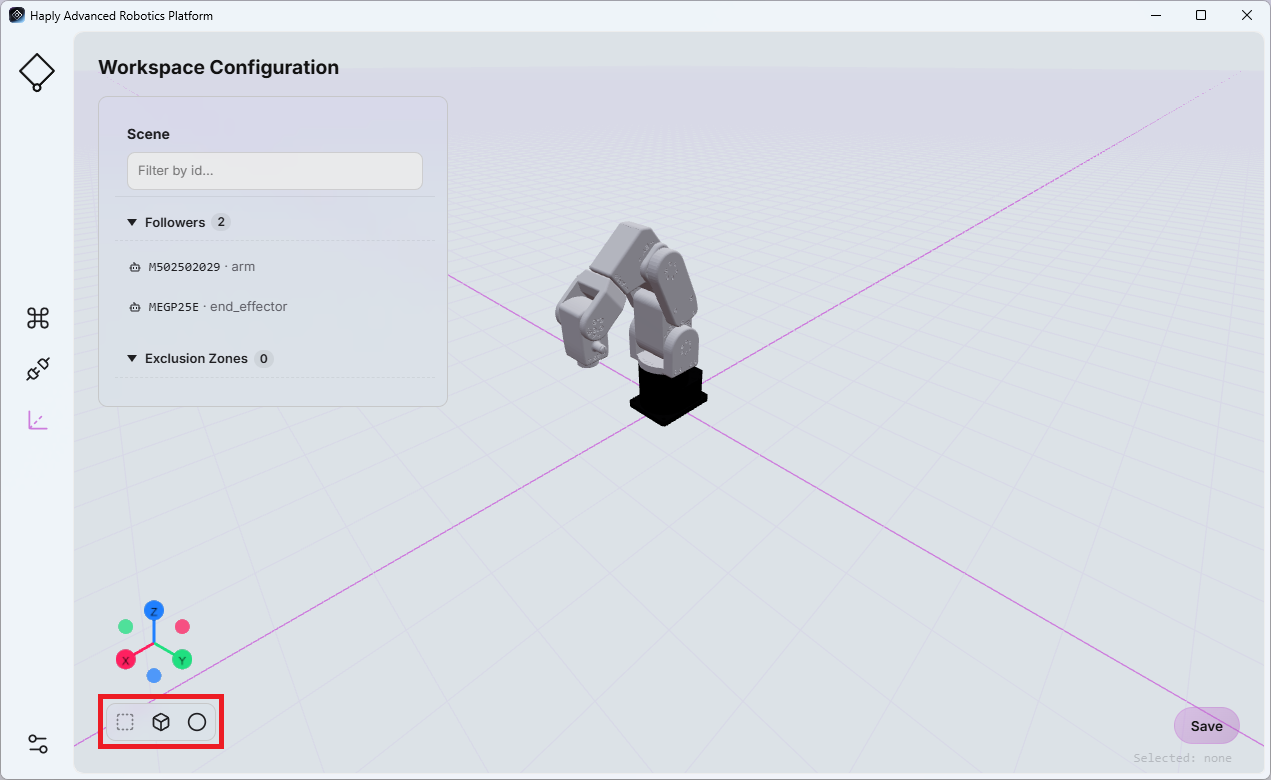
- The newly created exclusion zone will appear in the object list.
- Select the exclusion zone to display its configurable properties on the right side of the page.
Available parameters depend on the selected shape:
- Cube: Position, width, depth and height in meter
- Sphere: Position and Radius in meter
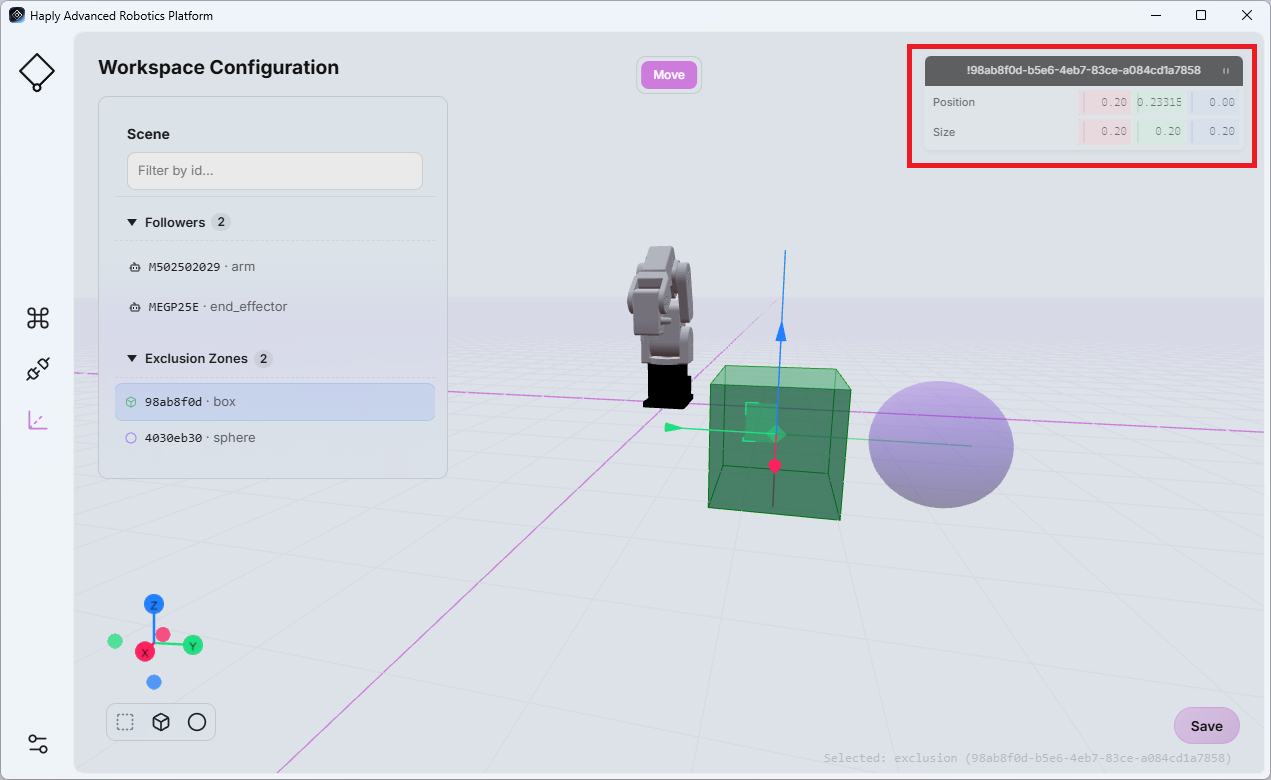
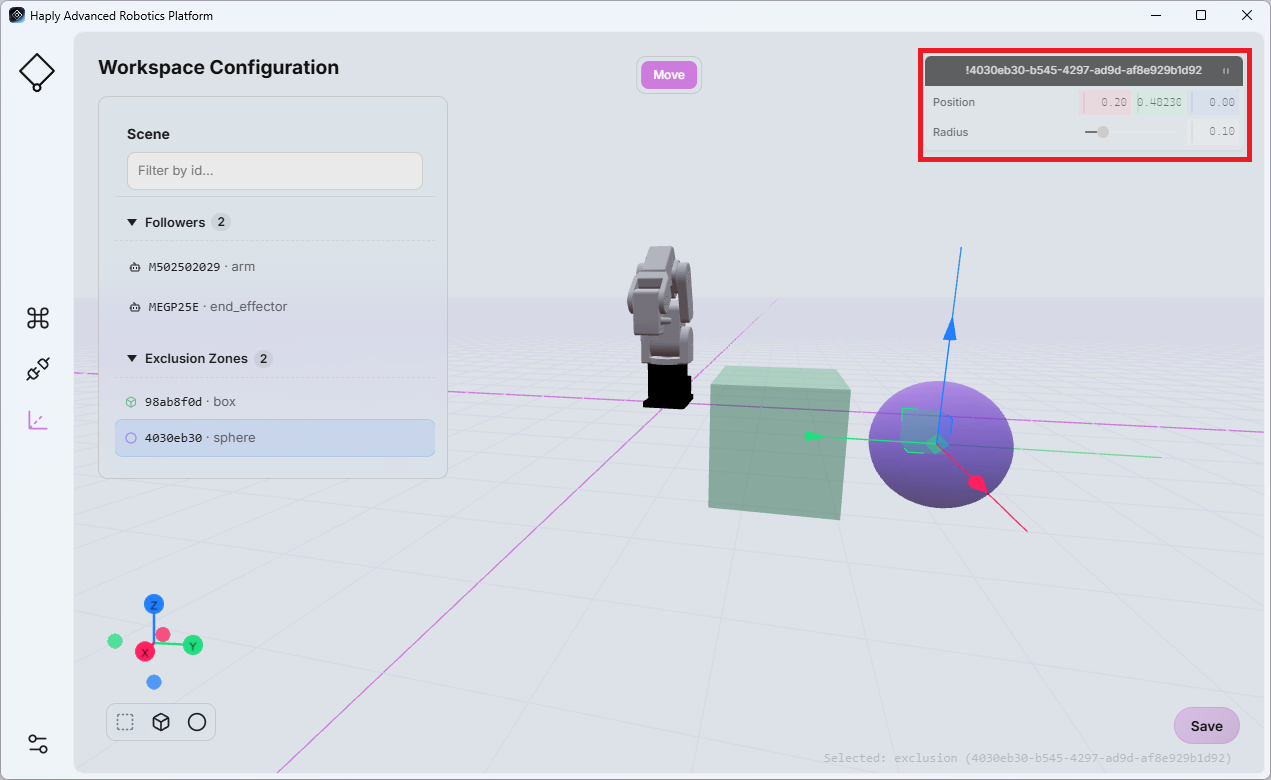
Adjust the values as needed to represent the corresponding physical object or restricted area.
Click Save before leaving the page to preserve your changes.
The Workspace configuration is directly linked to the Scene View in the Command Center screen (see Scene View). Any changes made to the workspace configuration are reflected in the Scene View.
Playback Collision
During playback of a recorded robot motion, HARP checks the planned end-effector path against the exclusion zones defined in the current workspace.
This is especially important when recorded .hrpr files are shared between projects or users, because the workspace configuration may differ from the environment in which the motion was originally recorded.
Before and during playback, HARP reads ahead in the motion file to determine whether the upcoming end-effector path intersects any configured exclusion zone.
Case 1 – Collision Before Playback Starts:
If HARP detects that the path between the robot's current position and the starting position of the recorded motion intersects an exclusion zone, playback will not begin. An error message will indicate that an exclusion zone is blocking the required path.
Case 2 – Collision During Playback:
If HARP detects that an upcoming portion of the recorded trajectory intersects an exclusion zone while playback is already in progress, playback will stop and an error message will indicate that an exclusion zone is blocking the recorded path.
Playback collision checking is based on the exclusion zones configured in the current HARP workspace. Always verify that the virtual workspace accurately represents the physical environment before executing a recorded motion.