Installation
Prerequisites
Before using HARP, you must install Haply Hub. Haply Hub manages communication between supported Haply devices and HARP.
- Visit the Haply Developer Hub to download the latest compatible version of Haply Hub.
- Run the downloaded installer and follow the on-screen installation instructions.
- Once installed, Haply Hub runs in the background and maintains communication with connected Haply devices.
The computer you are using should not have a separate instance of the Haply Inverse Service installed. See Haply Service Removal on instructions to remove the Haply Inverse Service before installing HARP
Installing HARP
When you purchase HARP, you will receive the HARP installer file from our team. This is a single-file installer containing everything needed to set up the platform.
-
Run the installer
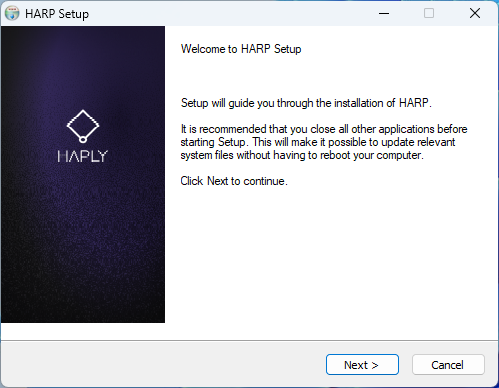
-
Choose an install location as close to your root directory as possible
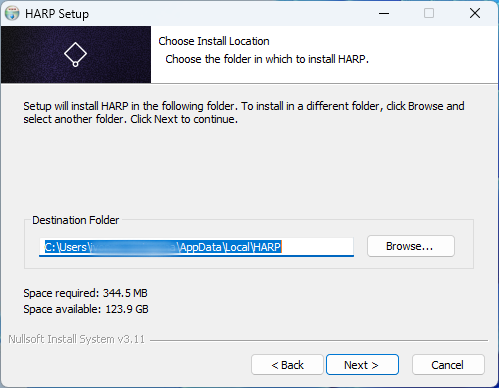
-
Select the check boxes if you want to run HARP or create a desktop shortcut and click Finish
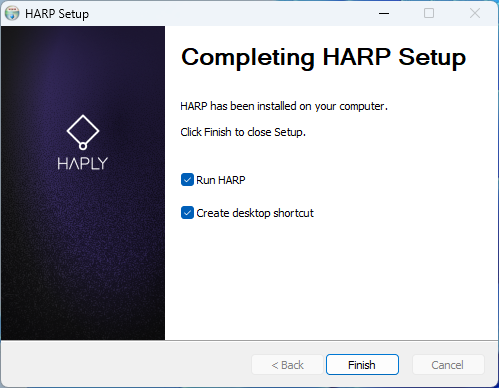
-
If the installation is successful, launch HARP. The Welcome page will appear when the application starts. Welcome to HARP!
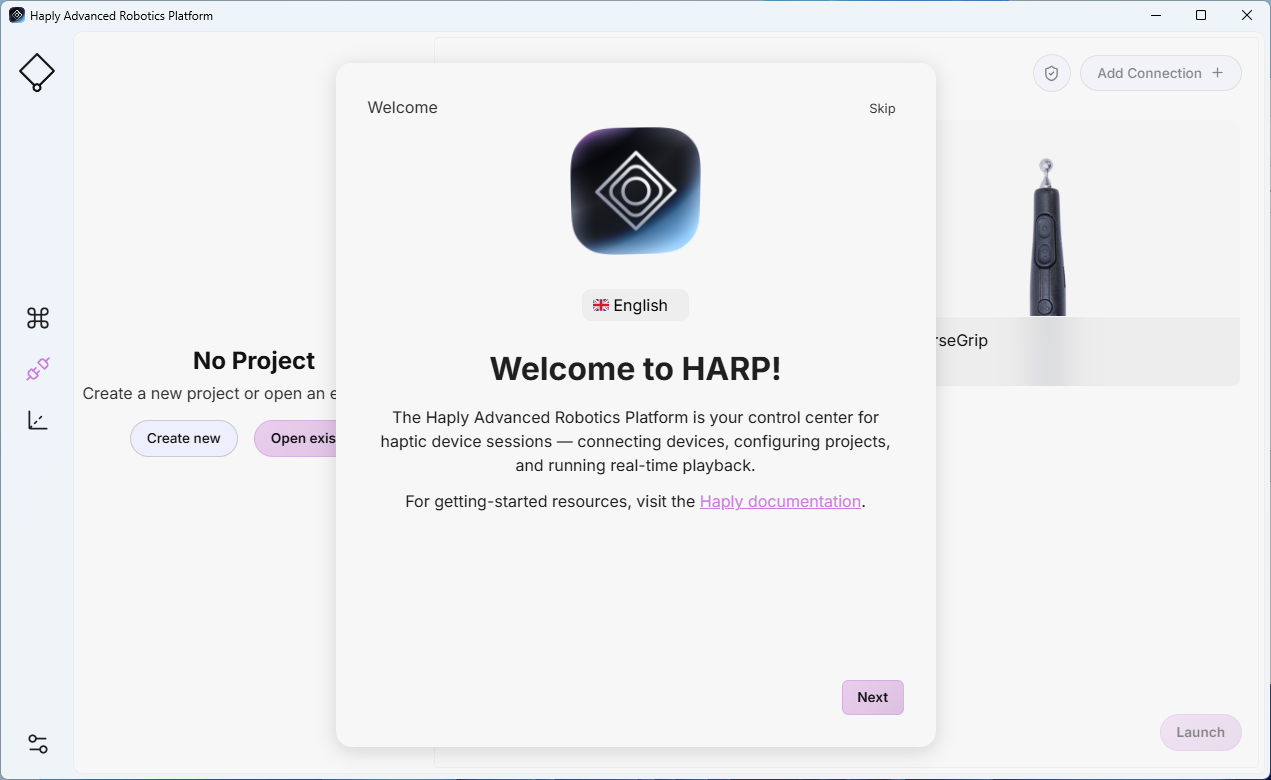
Connections
HARP connects to devices through COM ports or IP connections.
- If your computer restricts access to COM ports, USB devices, or network connections, update the relevant security settings to allow communication between HARP, Haply Hub, and connected Haply devices.
- TCP/IP connections are used by many follower devices. Ensure that all devices are configured on the appropriate network or subnet and that each device has a unique IP address.
- If required, configure your computer's local IP address so that it is compatible with the IP address range used by the connected follower devices.
- The following is an example network configuration:
| Device | IP Address |
|---|---|
| Router | 192.168.2.1 |
| Computer | 192.168.2.2 |
| Robot Arm | 192.168.2.3 |
| End-Effector/Gripper | 192.168.2.4 |
| Force/Torque Sensor | 192.168.2.5 |
| Safety Controller | 192.168.2.6 |
All network devices should be set up with static IP
License Activation
When you launch HARP for the first time, only limited functionality is available until a valid license is activated.
To activate your license, follow the instructions provided in License section.