Open an Existing Project
In addition to creating a new project, HARP allows you to open previously saved projects.
Each HARP project contains the following files and folders:
raw/: Stores all recorded motion data. This folder is empty when a new project is first created.project.json: Contains the main project configuration and key project information.scene.usda: Stores the project scene, including the configured objects and their properties.
Open a Project at Launch
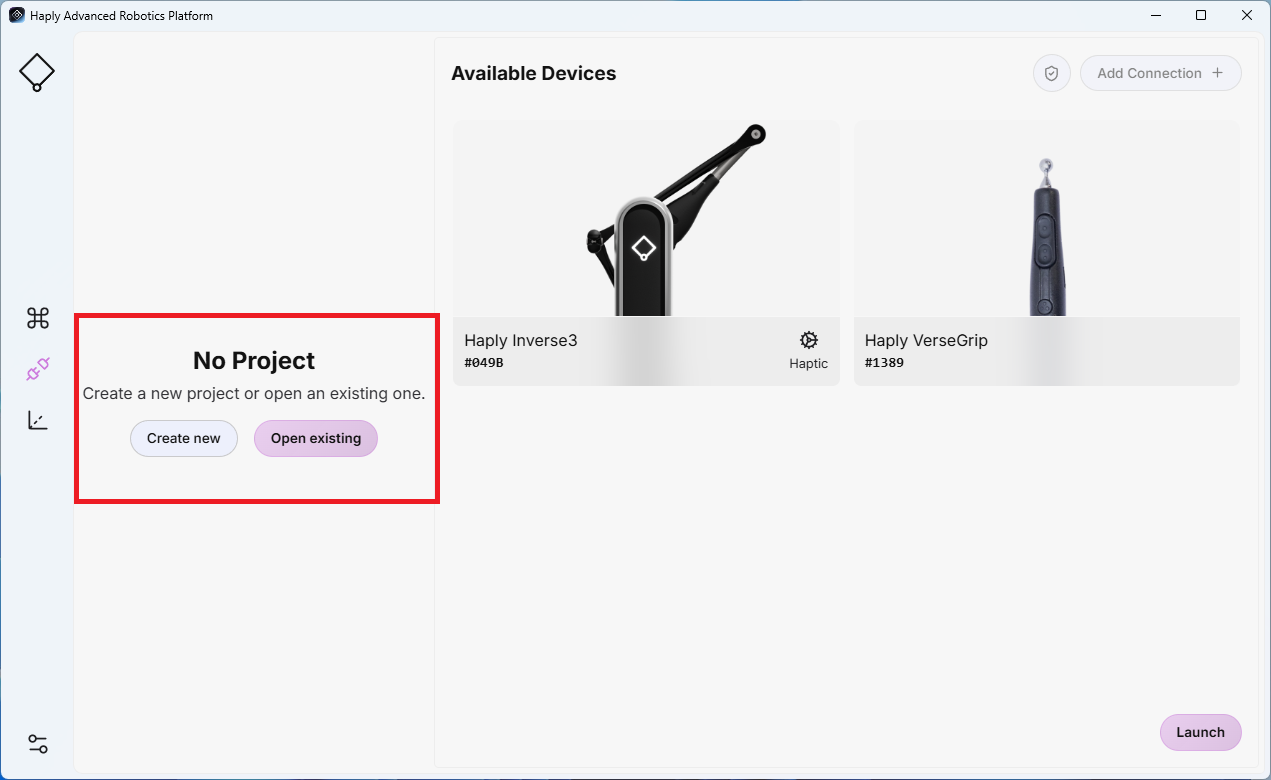
When HARP launches, click Open Existing to load a previously saved project.
Navigate to the project directory and select the project.json file. HARP uses this file to load the saved project configuration and restore the project scene and settings from the previous session.
Switch between Projects
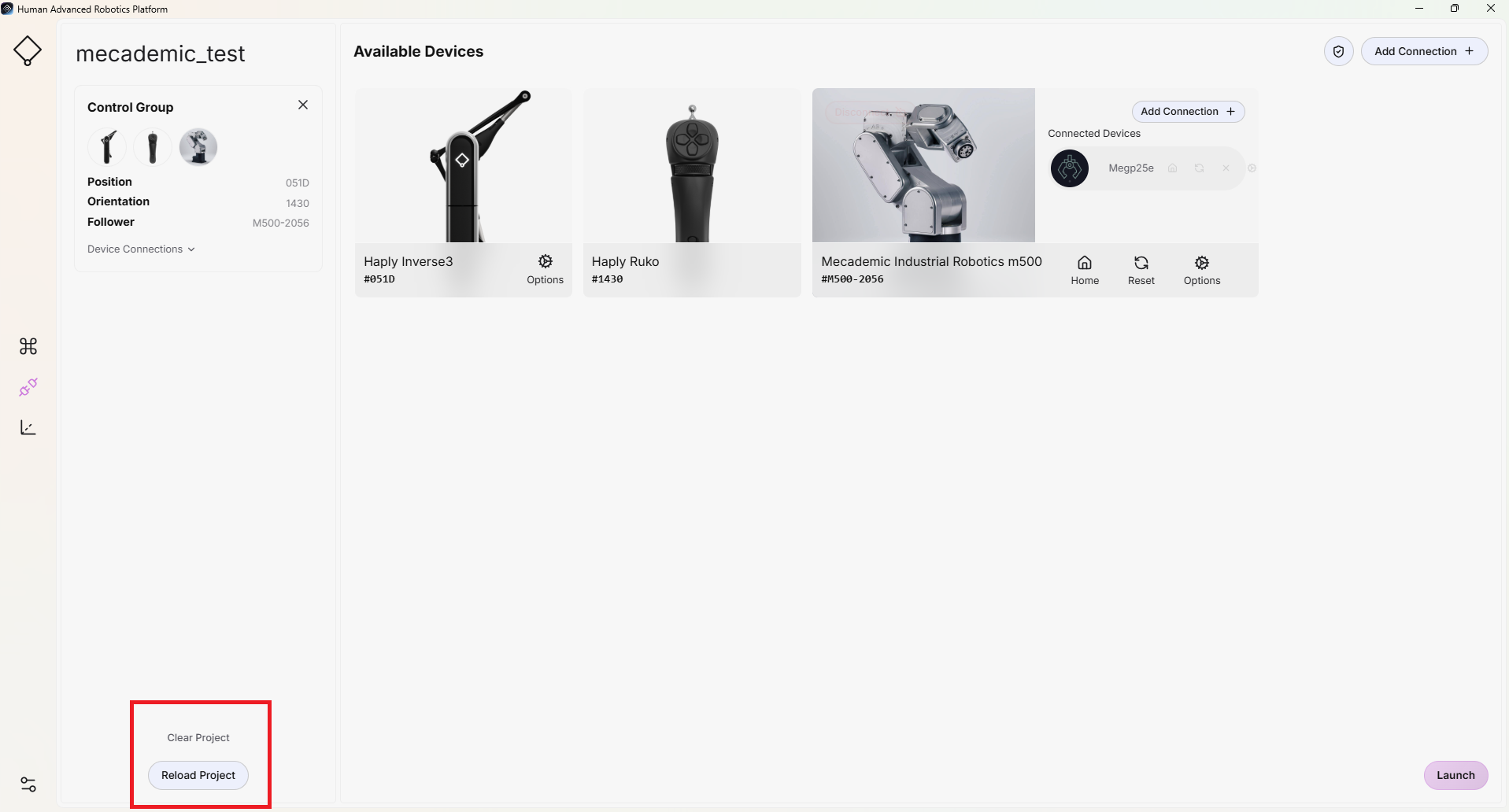
When working in an existing project, click Clear Project at the bottom of the page to switch to another project.
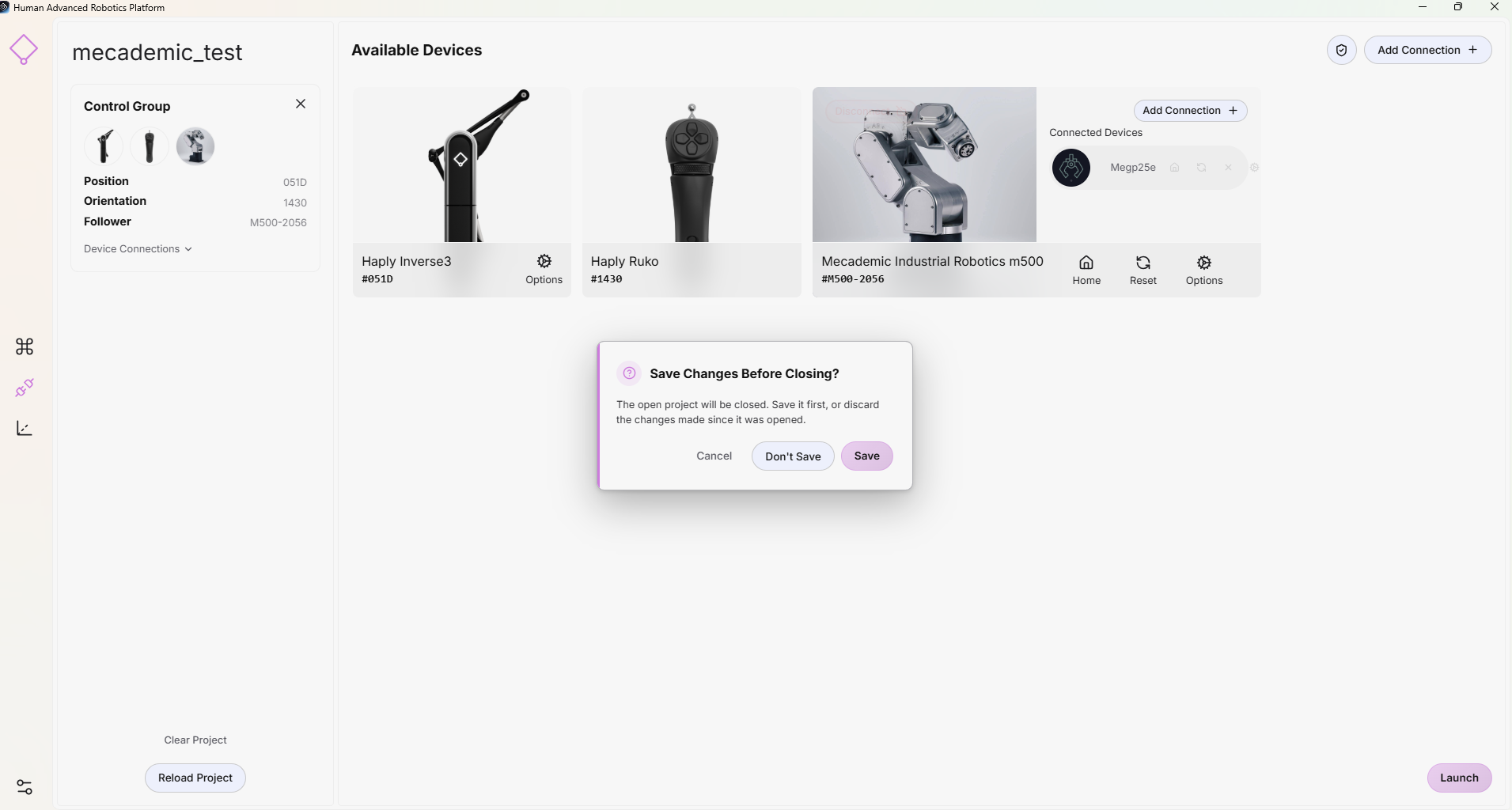
A confirmation dialog will appear, allowing you to choose whether to save the current project before closing it.
After clearing the current project, you can create a new project or open an existing one as described above.
Reload Project
You can reload the current project by clicking Reload Project at the bottom of the page.
A confirmation dialog will appear before the reload begins. Reloading restores the project to its last saved state and re-establishes the saved scene and configuration.
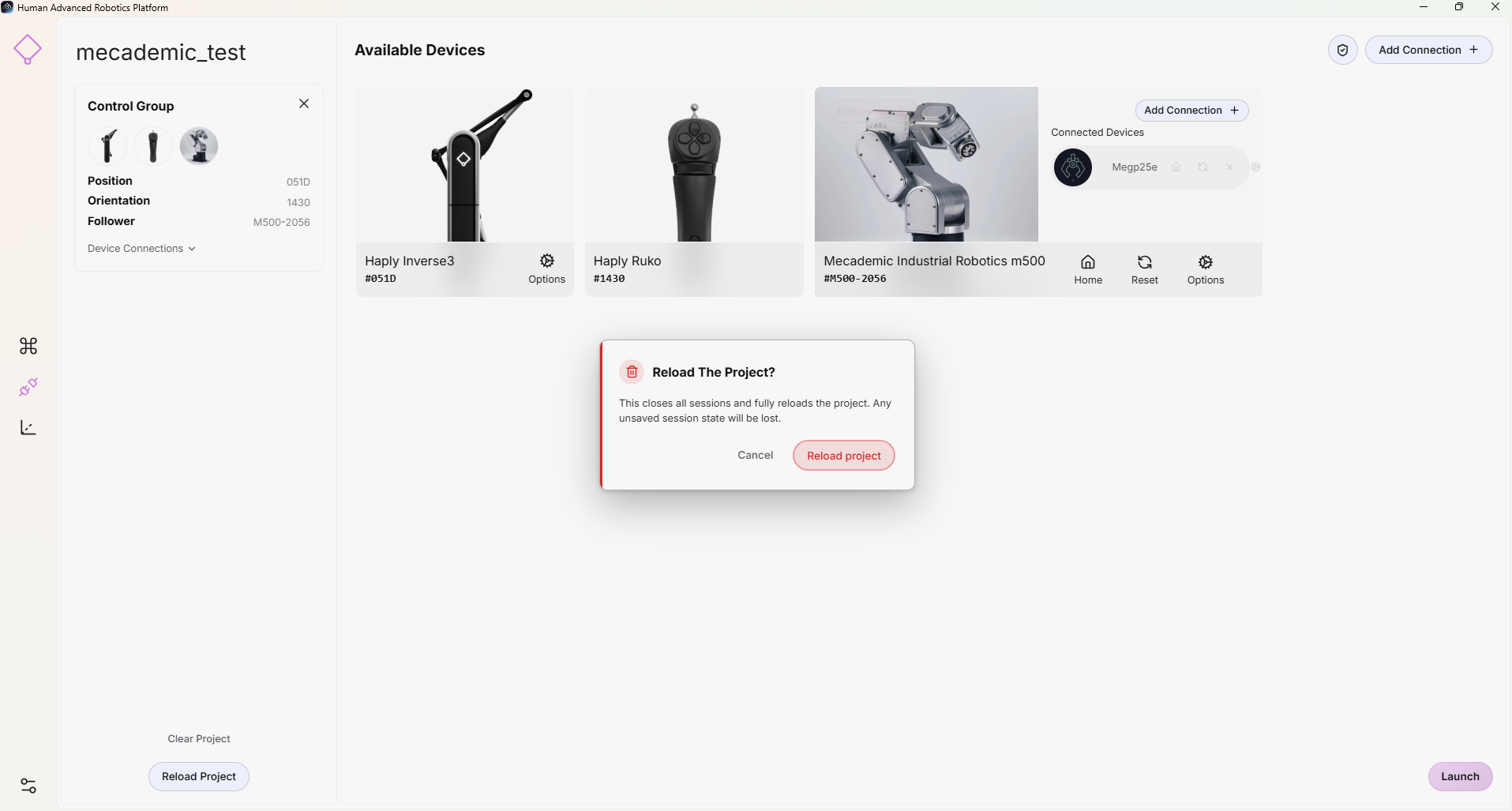
Make sure to save any changes before reloading the project. Any unsaved changes will be lost.
Load a Project with a Different Control Group
When opening an existing project, the saved Control Group must be correctly restored and validated before the project can be launched. If the Control Group does not match the saved project configuration, HARP prevents the session from launching.
This safety guard verifies that the required devices and their configurations are consistent with the saved project. A validation message will appear inside the Control Group if, for example:
- A robot is connected using a different IP address.
- A Haply device type has changed, such as replacing a VerseGrip with a Ruko.
- The configured end effector does not match the saved project configuration.
- A required device is missing or incorrectly configured.
Device identifiers may differ between sessions, but the required device types and relevant configuration parameters must match the saved project.
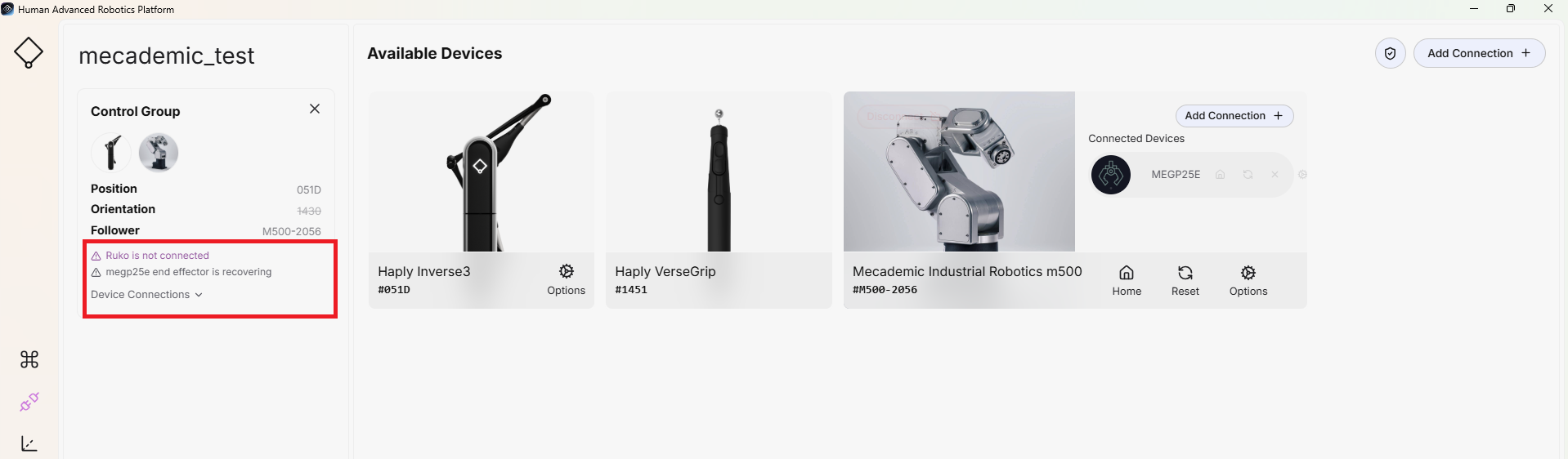
Resolve any reported configuration issues before launching the project.
Save a Project
A project can be saved when closing HARP or when switching between projects.
Saving the project updates the project.json file with the latest project configuration.
Make sure to save all changes before closing or clearing the current project to avoid losing unsaved work.