Recording a Macro
Recording robot motions allows you to create macros that can be played back later for repeatable tasks. By recording a teleoperated motion, you can reuse the same motion sequence to automate part of a process.
Recordings preserve the timing of the original motion so that playback follows the same time scale as the recorded sequence.
During recording, HARP captures data from the follower side, including robot joint positions, joint velocities, force data, and gripper state when available.
Because the recorded data comes from the follower devices, you can teleoperate using the control method that is most comfortable for the task, including:
- Translation-only control
- Position and orientation control
- Axis locking
- Motion scaling
These teleoperation settings affect how the motion is created, while the resulting follower motion is captured for playback.
Start/Stop a Recording
- From the Command Bar, click Start Recording at any time, whether the clutch is engaged or not. See Command Center for more information.
- While recording is active, HARP captures all follower-side data, including periods when no motion occurs.
- When the recording is complete, click End Recording to stop and save the capture. Recorded files are saved automatically in the project's
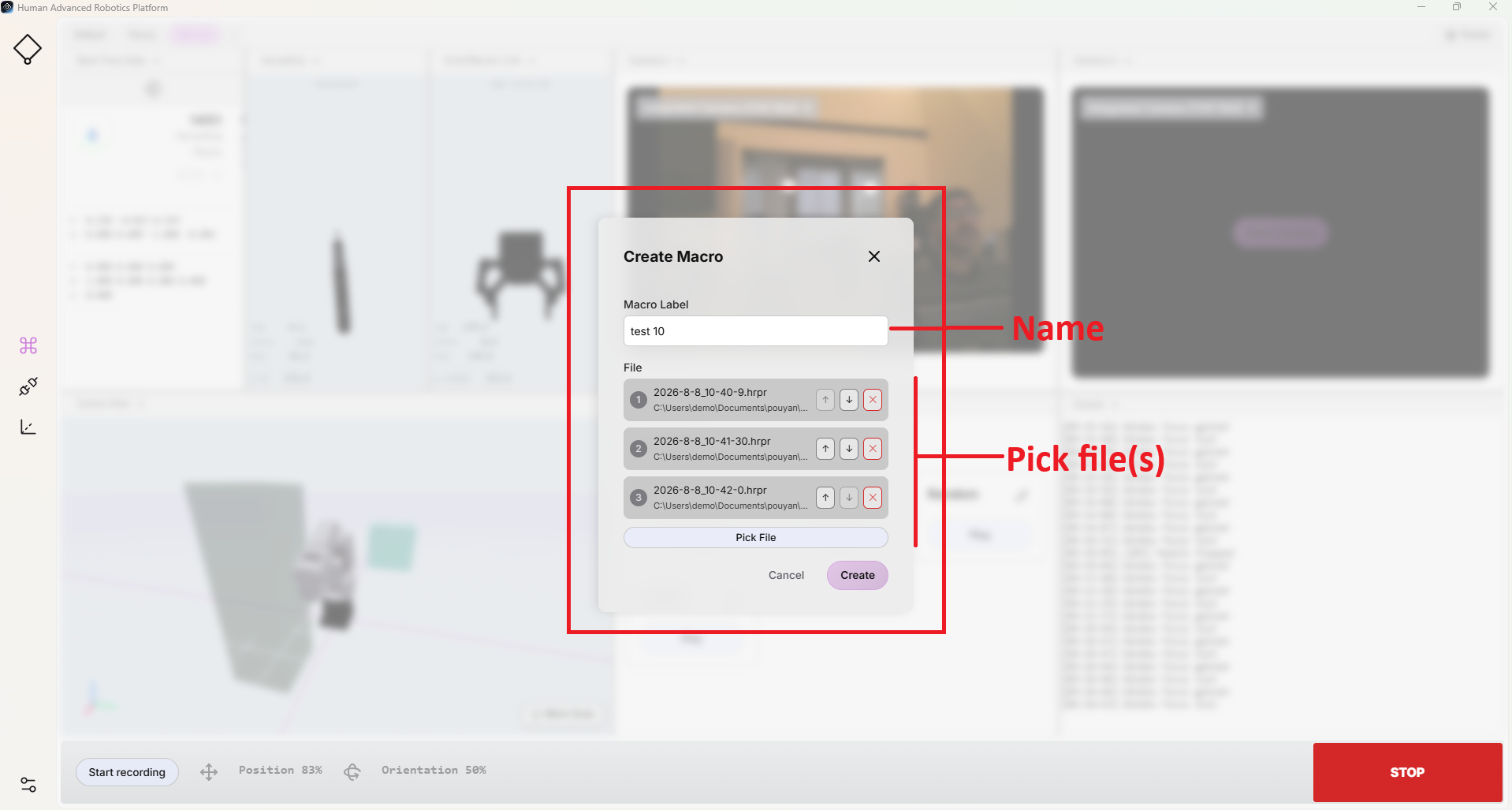
raw/folder. - To add the recorded motion to the Macros panel, click Add Macro. For more information see Macros.
- Enter a name or number in the macro label field, or leave the field empty if no label is required.
- Click Pick File and navigate to the project's
raw/folder. - Select one or more recorded
.hrprfiles. - Click Create. The new macro will appear in the Macros panel and can then be used for playback.
Sequence of Macros
For easier recording and automation, HARP allows multiple recorded motions to be combined into a macro.
In many applications, recording an entire process in a single session may not be practical. Instead, the task can be recorded in smaller segments, with each segment saved as an individual macro. These recorded motions can then be combined into a single macro.
During playback, HARP executes the selected .hrpr recordings one after another according to the configured sequence order.
Because the recordings capture the user's teleoperated hand motions, it is important to minimize unnecessary pauses between sequence segments. Keeping transitions between recorded macros short helps produce smoother and more continuous motion during playback.
Edit a Macro
After creating a macro, you can edit its configuration at any time. This includes changing the macro name, replacing the associated recording, or adding and removing motions from a sequence.
To edit a macro, click the pen icon in the top-right corner of the corresponding macro in the Macros panel.
Data Captured
Recorded macros are saved using the following filename format:
YYYY-M-D_H-m-s.hrpr
For example:
2026-9-7_9-29-32.hrpr
During a recording session, HARP captures, at minimum, the following follower-side data:
- Robot Arm: Position, joint angles, and speed
- End Effector: Position
Recordings are stored in a G-code inspired text format, allowing motion paths to be reviewed and modified when needed.
- Individual lines or axis values can be removed to customize the playback behavior.
- Missing axis values retain their current values. If an axis is omitted from a playback step, HARP keeps that axis at its current position instead of commanding a new value.
For more information about recorded macros and their file structure, see Macro File Format.
Home Macro
As explained in Configurable Home Pose, you can save a robot configuration as the default Home Pose.
Because the Collision Avoidance feature is applied automatically when the Home macro is executed, HARP recalculates the motion path based on the robot's current pose, the configured Home Pose, and the obstacles defined in the workspace scene.
When a Home Pose is saved, HARP automatically creates the following file inside the project's raw/ folder: CG0-HOME.hrpr
This file stores the configured Home Pose.
Each time you click Play on the Home macro, the path planner uses the saved Home Pose to generate a collision-avoiding trajectory. The resulting planned motion is saved as: CG0-HOME-PLANNED.hrpr
The planned trajectory may change each time it is generated, depending on the robot's current pose, the target Home Pose, and the obstacles defined in the workspace.
Therefore, in addition to user-recorded motion files, the project's raw/ folder may also contain these two Home-related files:
CG0-HOME.hrpr— Stores the configured Home Pose.CG0-HOME-PLANNED.hrpr— Stores the most recently generated collision-avoiding trajectory to the Home Pose.
Example
For example, assume your project is named Haply_Robotics and is located in the Documents/projects directory.
When you record a macro, HARP automatically saves the recording in the project's raw/ folder. To access the recorded macros, navigate to:
/Documents/projects/Haply_Robotics/raw/
Inside this directory, you will find the recorded macro files in .hrpr format.