基础力反馈教程
本教程将指导您创建一个基础触觉模拟,同时包含刚度和阻尼,用于模拟与静态物体(例如球体)接触时的物理特性。 完成本教程后,您将拥有一个模拟程序,可以感受到球体的存在,并调整其刚度和阻尼属性,以获得不同的触觉体验。
简介
本教程的核心挑战是开发一个函数,用于计算与同时具有 刚度 和 阻尼 的球体接触时产生的力。 在此语境中,刚度的作用类似于弹簧,压缩得越多,产生的力就越大。 另一方面,阻尼表示物体对运动的阻力,物体移动得越快,所受阻力越大。
场景设置
首先,按照 入门指南 中的说明设置 Haptic Rig,并确保 Haptic Origin 的位置、旋转和缩放分别设置为 (0, 0, 0) 和 (1, 1, 1)。
然后,创建一个名为 Sphere 的球体,并设置以下属性:
- 位置:
(0, 0, -0.1)(约位于设备前方 10 厘米处) - 缩放:
(0.2, 0.2, 0.2)(对应直径为 20 厘米的球体)
力反馈脚本
为 Sphere 游戏对象添加一个新的 C# 脚本,命名为 SphereForceFeedback.cs。
该脚本将在与球体接触时计算施加到 Inverse3 光标上的力,同时考虑刚度和阻尼。
使用以下属性初始化脚本:
[SerializeField]
private Inverse3 inverse3;

[Range(0, 800)]
public float stiffness = 300f;
[Range(0, 3)]
public float damping = 1f;

private Vector3 _ballPosition;
private float _ballRadius;
private float _cursorRadius;
仅当光标穿透球体时才应进行力计算,以模拟触碰具有特定刚度和阻尼的实体物体时的感觉。
ForceCalculation 方法将负责此项计算,同时考虑光标的位置和速度:
private Vector3 ForceCalculation(Vector3 cursorPosition, Vector3 cursorVelocity, float cursorRadius,
    Vector3 otherPosition, float otherRadius)
{
    var force = Vector3.zero;

    var distanceVector = cursorPosition - otherPosition;
    var distance = distanceVector.magnitude;
    var penetration = otherRadius + cursorRadius - distance;

    if (penetration > 0)
    {
        // Normalize the distance vector to get the direction of the force
        var normal = distanceVector.normalized;

        // Calculate the force based on penetration
        force = normal * penetration * stiffness;

        // Apply damping based on the cursor velocity
        force -= cursorVelocity * damping;
    }

    return force;
}

private void OnDeviceStateChanged(object sender, Inverse3EventArgs args)
{
    var inverse3 = args.DeviceController;
    // Calculate the ball force
    var force = ForceCalculation(inverse3.CursorLocalPosition, inverse3.CursorLocalVelocity,
        _cursorRadius, _ballPosition, _ballRadius);

    inverse3.SetCursorLocalForce(force);
}
在 Awake 方法中,初始化 _ballPosition、_ballRadius 和 _cursorRadius,以设置场景数据:
private void SaveSceneData()
{
    var t = transform;
    _ballPosition = t.position;
    _ballRadius = t.lossyScale.x / 2f;

    _cursorRadius = inverse3.Cursor.Radius;
}

private void Awake()
{
    SaveSceneData();
}
请确保分别在 OnEnable 和 OnDisable 方法中注册和注销 OnDeviceStateChanged 回调,以便在交互过程中正确处理力反馈:
protected void OnEnable()
{
    inverse3.DeviceStateChanged += OnDeviceStateChanged;
}

protected void OnDisable()
{
    inverse3.DeviceStateChanged -= OnDeviceStateChanged;
}
游戏体验
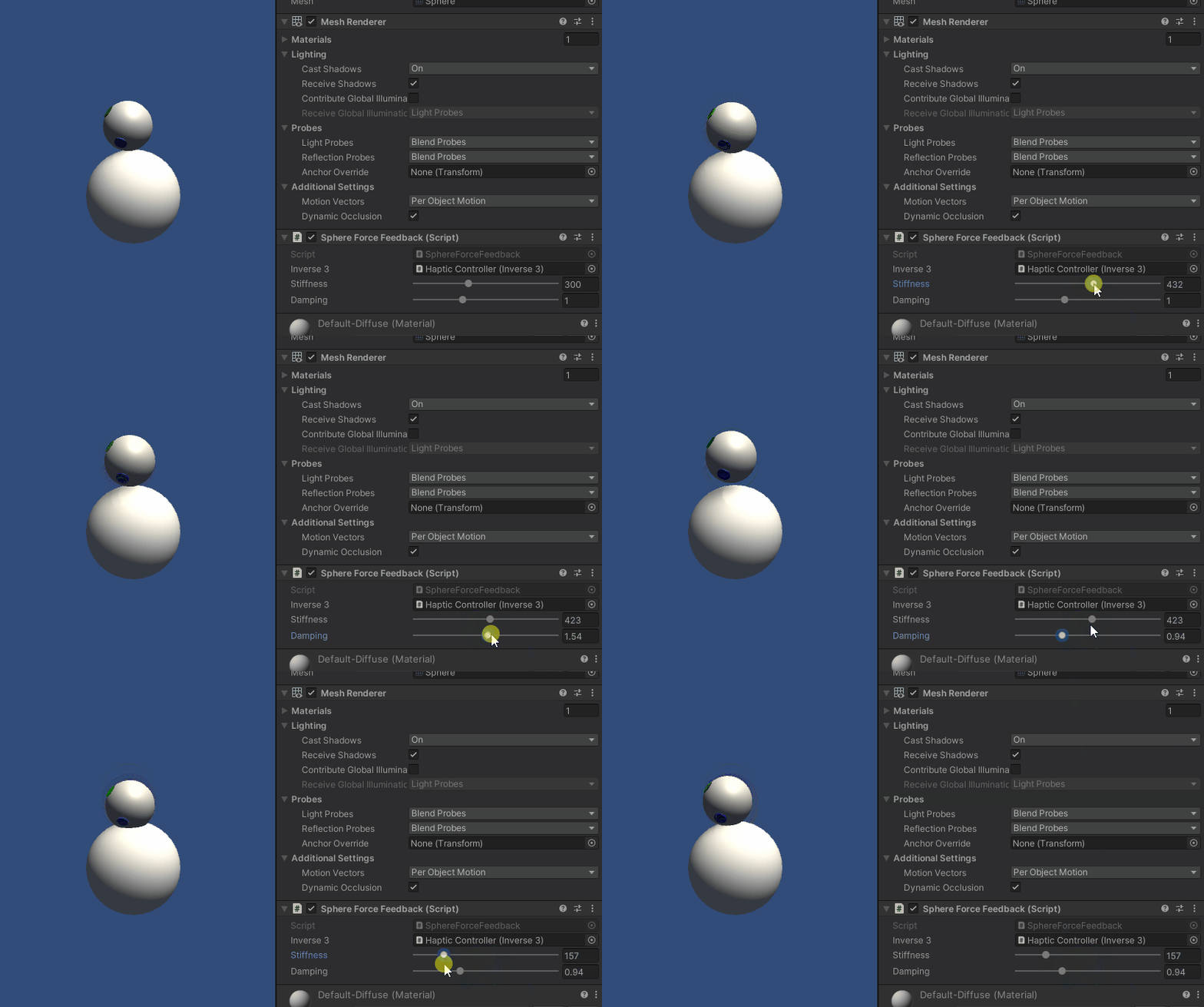
握住 Inverse3 光标时,进入播放模式,尝试触碰球体。 您应当能够感受到球体的存在,并通过 Unity 检查器调整其刚度和阻尼属性,从而获得与虚拟物体交互的真实触感。
源文件
本示例的完整场景及所有相关文件,均可从 Unity 包管理器中的 Tutorials 示例导入。
SphereForceFeedback.cs
/*
 * Copyright 2024 Haply Robotics Inc. All rights reserved.
 */

using Haply.Inverse.DeviceControllers;
using Haply.Inverse.DeviceData;
using UnityEngine;

namespace Haply.Samples.Tutorials._2_BasicForceFeedback
{
    public class SphereForceFeedback : MonoBehaviour
    {
        public Inverse3Controller inverse3;

        [Range(0, 800)]
        // Stiffness of the force feedback.
        public float stiffness = 300f;

        [Range(0, 3)]
        public float damping = 1f;

        private Vector3 _ballPosition;
        private float _ballRadius;
        private float _cursorRadius;

        /// <summary>
        /// Stores the cursor and sphere transform data for access by the haptic thread.
        /// </summary>
        private void SaveSceneData()
        {
            var t = transform;
            _ballPosition = t.position;
            _ballRadius = t.lossyScale.x / 2f;

            _cursorRadius = inverse3.Cursor.Radius;
        }

        /// <summary>
        /// Saves the initial scene data cache.
        /// </summary>
        private void Awake()
        {
            inverse3 ??= FindObjectOfType<Inverse3Controller>();
            inverse3.Ready.AddListener((device, args) => SaveSceneData());
        }

        /// <summary>
        /// Subscribes to the DeviceStateChanged event.
        /// </summary>
        private void OnEnable()
        {
            inverse3.DeviceStateChanged += OnDeviceStateChanged;
        }

        /// <summary>
        /// Unsubscribes from the DeviceStateChanged event.
        /// </summary>
        private void OnDisable()
        {
            inverse3.DeviceStateChanged -= OnDeviceStateChanged;
            inverse3.Release();
        }

        /// <summary>
        /// Calculates the force based on the cursor's position and another sphere position.
        /// </summary>
        /// <param name="cursorPosition">The position of the cursor.</param>
        /// <param name="cursorVelocity">The velocity of the cursor.</param>
        /// <param name="cursorRadius">The radius of the cursor.</param>
        /// <param name="otherPosition">The position of the other sphere (e.g., ball).</param>
        /// <param name="otherRadius">The radius of the other sphere.</param>
        /// <returns>The calculated force vector.</returns>
        private Vector3 ForceCalculation(Vector3 cursorPosition, Vector3 cursorVelocity, float cursorRadius,
            Vector3 otherPosition, float otherRadius)
        {
            var force = Vector3.zero;

            var distanceVector = cursorPosition - otherPosition;
            var distance = distanceVector.magnitude;
            var penetration = otherRadius + cursorRadius - distance;

            if (penetration > 0)
            {
                // Normalize the distance vector to get the direction of the force
                var normal = distanceVector.normalized;

                // Calculate the force based on penetration
                force = normal * penetration * stiffness;

                // Apply damping based on the cursor velocity
                force -= cursorVelocity * damping;
            }

            return force;
        }

        /// <summary>
        /// Event handler that calculates and send the force to the device when the cursor's position changes.
        /// </summary>
        /// <param name="sender">The Inverse3 data object.</param>
        /// <param name="args">The event arguments containing the device data.</param>
        private void OnDeviceStateChanged(object sender, Inverse3EventArgs args)
        {
            var inverse3 = args.DeviceController;
            // Calculate the ball force
            var force = ForceCalculation(inverse3.CursorLocalPosition, inverse3.CursorLocalVelocity,
                _cursorRadius, _ballPosition, _ballRadius);

            inverse3.SetCursorLocalForce(force);
        }
    }
}